Code Your Transcript
At this point, you should have three documents:
-
A Google Doc version of the transcript
-
A Google Sheet named
lastnamefirstname_original -
A Google Sheet named
lastnamefirstname. This is the file you’ll be working on from now on. It should be a transcript that’s set up like this…
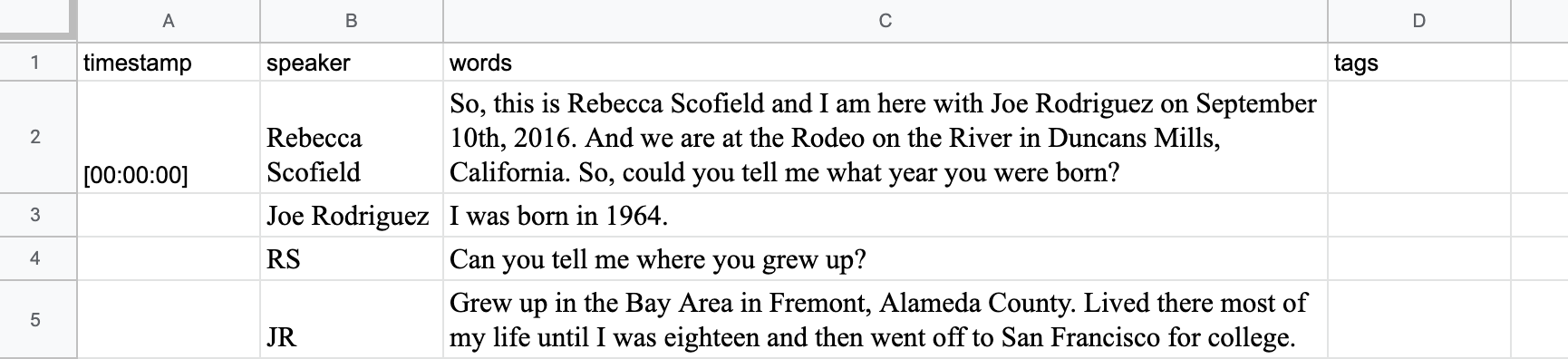
…with four columns labeled timestamp, speaker, words, and tags
Now it’s time to start coding! Follow these steps:
Transcript Tagging
-
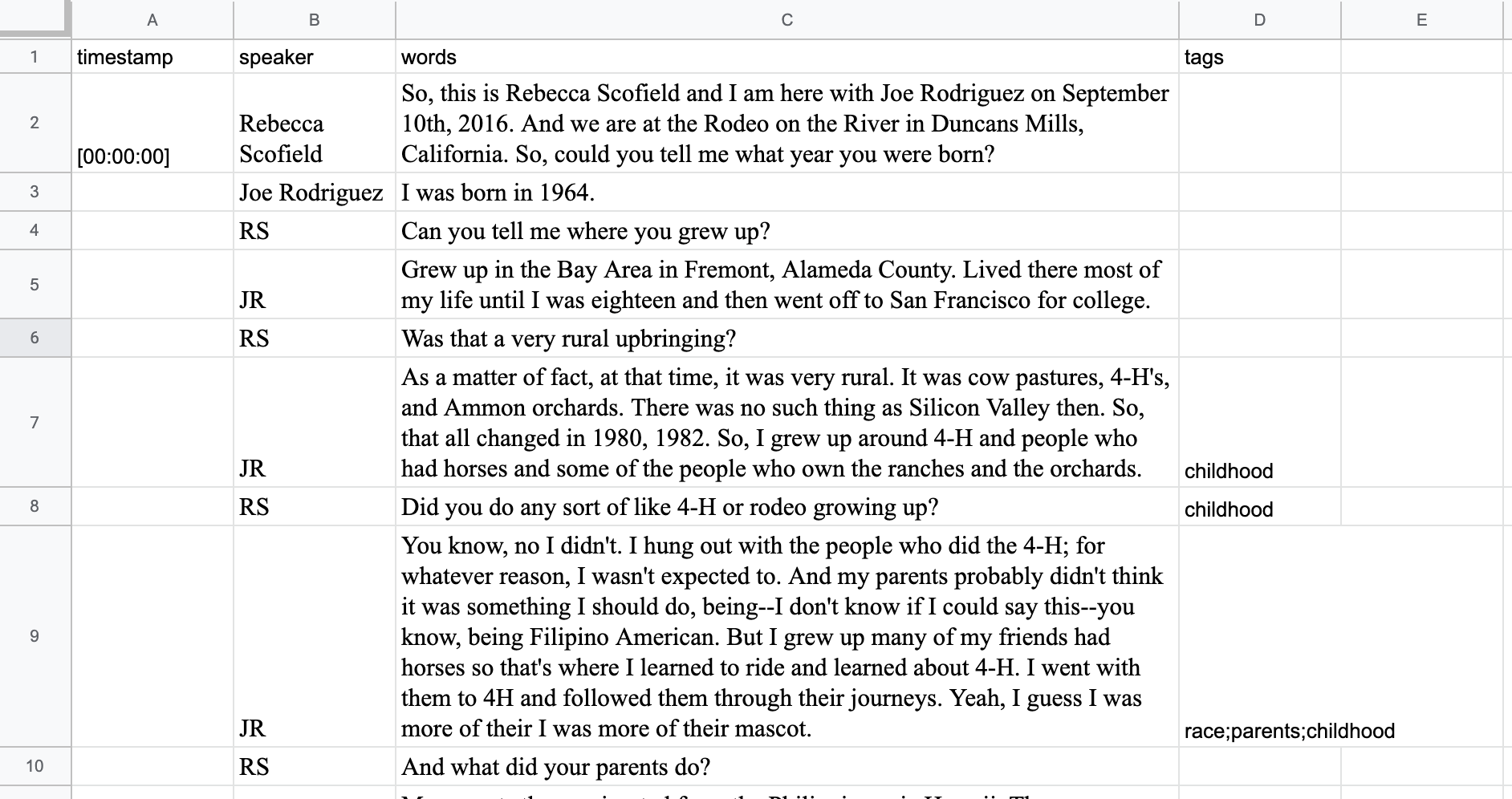
Read through your transcript and tag cells with the preapproved tags in the table below. These tags should be entered into the
tagscolumn, in the same row as the text they’re describing.- If you think of a new tag you’d like to use, be sure to add it to this filters spreadsheet before you use it.
Note: you don’t need to insert a tag in every single row, only when you come across text that you think needs to be tagged
-
Keep tags lowercase (following the format in the table below).
-
If you put multiple tags in one cell, separate them with a semicolon (
;).
Tags
| Tag (for use when coding): | Description: |
|---|---|
| childhood | Childhood |
| comingout | Coming Out |
| community | Gay community |
| cowperson | What does it mean to be a cowgirl/cowboy? |
| dance | Dance |
| events | Rodeo Events |
| family | Family |
| highlight | Especially interesting highlights from the interview |
| homophobia | Homophobia/Homophobic Attacks |
| igra | Future of the association (IGRA) |
| injuries | Injuries |
| jobs | Jobs/Professions |
| mentor | Mentoring |
| parents | Parents |
| peta | PETA protests |
| race | Race |
| religion | Religion |
| teaching | teaching and students |
Coded Spreadsheet
Here’s how your tagged spreadsheet should look:
Remove Unwanted Content
-
As you read through, you might find sections of the text that should be removed from the transcript
-
When you remove an entire cell of text, enter an ellipsis in brackets (
[...]) into the empty cell -
When you remove some text from a paragraph in the middle of a cell, also replace this removed text with an ellipsis in brackets (
[...])
Curate Some Conversations
Keep track of snippets of text that you think might fit into existing conversations.
Important: Don’t tag your transcript spreadsheets using the conversation tags. Follow these steps instead:
-
When you find some text you think might fit in a current conversation, copy it and paste it into this spreadsheet: Master Conversations.
-
When you find some text that you think should fit into a new conversation, copy and paste it into this spreadsheet: New Conversations.
-
Insert your snippet of text into the
commentscolumn in the spreadsheet, and add the speaker’s first name and last name to the row. -
Text for conversations should be short and to the point. To skip over portions of the transcript in the conversation text, simply replace the unwanted text with an epllisis in brackets
[...]. -
Tag your snippet of text with an appropriate tag selected from Conversation Tags table below. Only one conversation tag is allowed per text selection.
Conversation Tags
| Tag (for use when coding): | Question: |
|---|---|
| comingout | What was your experience coming out? |
| cowperson | What does it mean to be a cowboy or cowgirl and are you one? |
| injuries | Have you ever been physically injured? |
| special | What is special about gay rodeo? |
| started | How did you find gay rodeo? |
Finishing Up
When your transcript is finished, notify Becca and she will check it for you.
Once she approves it, you’ll need to download the transcript to your computer as a comma-separated file (CSV). Follow the steps below:
-
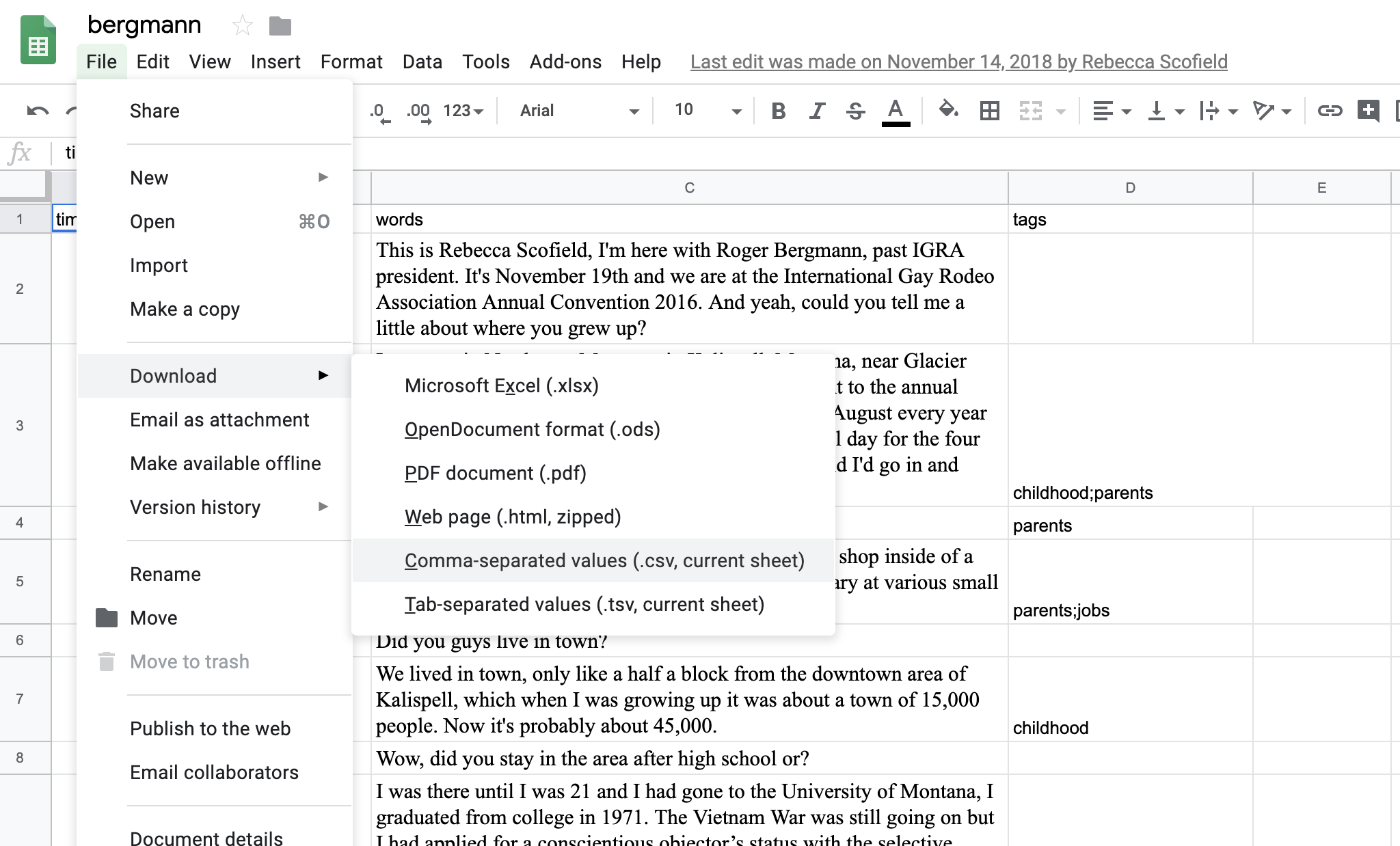
Click on
File>Download>Comma-separated values (.csv, current sheet). -
Don’t open the CSV. Make sure you know where it’s located on your computer, then move to the next page for instructions on what to do next.